Memory channels, presets and scan
Save frequencies, recall bands, find who is talking
What memory channels are
A memory channel (or channel) is a frequency saved with all its settings: mode, sub-tone, power, name. Memory channels live in banks: each bank is a notebook of 500 memory channels, and there are 16 banks.
The easiest way to fill them is the PC program. From the radio you can still save, give a name and delete.
Using the memory channels
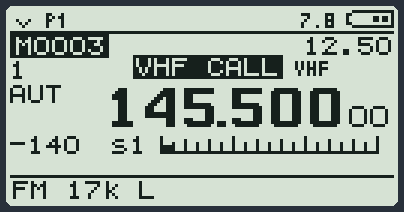
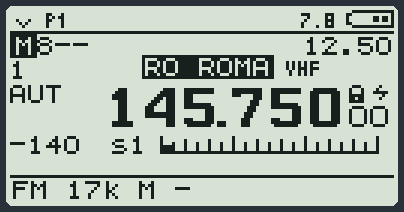
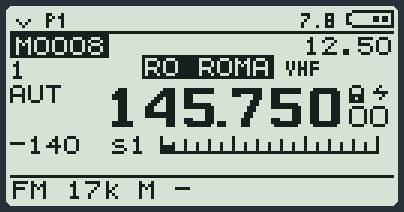
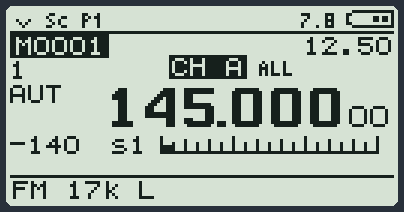
- Hold down 3: you go from frequencies to memory channels. The number appears at the top left, for example M0008.
- Change memory channel with UP and DOWN.
- Or type the number: 8 and then MENU goes to memory channel 8. With three digits it confirms by itself.
- Hold down 3 again to go back to frequencies.
Save, rename, delete
| I want to | I do |
|---|---|
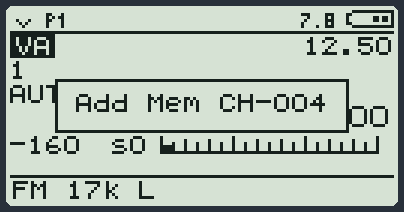
| Save the frequency I am listening to | In frequency mode: F and then 4. It goes into the first free memory channel and you read Add Mem CH-.... If there is no more room: Memory Full. |
| Give a name | MEM menu, item ChName: choose the memory channel, MENU, type, MENU. |
| Delete a memory channel | On the memory channel: F and then EXIT long. Or from ChName with the * key (DEL? *=YES: press * again). |
| Put the memory channel in a group | On the memory channel: F and then 9. |
| See only some groups | On the memory channels: 1 long, or MEM menu, item ChGroup. |
| Make the scan skip a memory channel | On the memory channel: F and then 4. |
| Bring the memory channel to the VFO so I can move | F and then 3 long. |
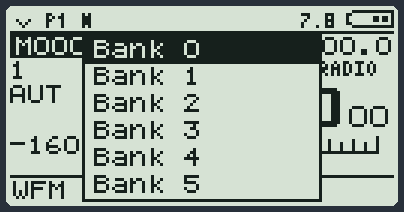
| Change bank | On the memory channels: F and then 1. Or MEM menu, item M Bank. |
| Go to the favourite channel | F and then 9 long (you choose it with 1 Call). |
The presets
A preset is a ready-made band. In one move it puts the VFO on the band you want, with all the right settings, and tells the scan where to start and where to end. The radio holds 24 of them, and twelve are already made. To use them you need the Preset module: it loads by itself and does not appear in the list of modules.
| What is inside a preset | What happens when you recall it |
|---|---|
| The name | It appears above the frequency. |
| The lower limit and the upper limit | The VFO goes to the lower limit. The scan will stay between the two limits. |
| The step | The arrows jump by that step. |
| The mode, the bandwidth, the gain, the squelch | They are applied to the VFO. |
| The power | It is applied to the VFO. |
| The sub-tones | They are not touched: the ones you had stay. |
Recalling a preset
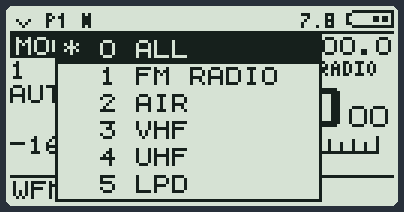
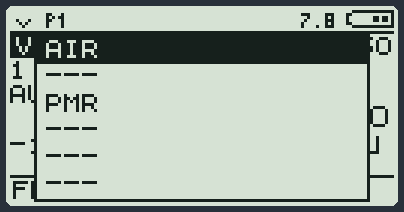
- Open the list in one of these ways: F and then side key 1; or side key 2 held down (if you have not changed the side keys); or MENU, 2, item Preset.
- Choose with UP and DOWN. Empty places show as ---: on an empty place MENU does nothing.
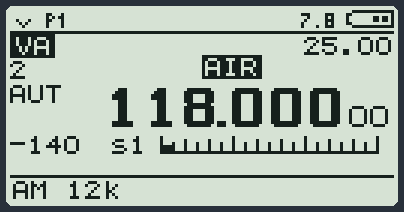
- Press MENU. The VFO you are using goes to that band and the preset name appears above the frequency.
- EXIT instead closes the list without changing anything.
| The name disappears when | Why |
|---|---|
| you leave the band of the preset, with the arrows or by writing another frequency | You are no longer in that band. If you come back in, the name appears again. |
| you hold down EXIT | You reset the VFO: it is no longer that band. |
| you mark another scan limit (F and then an arrow) | You decided where to search: they are no longer the preset limits. |
| you recall another preset | The name of the new one appears. |
| you are outside the band and you start the scan | The scan starts from the frequency where you are and the preset is forgotten: the name does not appear again, not even if you go back into the band. |
The presets and the scan
After recalling a preset, hold down *: the scan runs only inside that band, from the lower limit to the upper limit, and then starts again. The frequencies you put in the blacklist with a short * are skipped.
If instead you write a frequency outside the band of the preset and start the scan, the scan starts from there, on the band of that frequency, and the preset is forgotten. The limits you set yourself with F and the arrows stay even outside the band.
Every preset has its own scan blacklist: when you recall the preset, the radio loads it and the scan skips those frequencies. To save the blacklist you have now onto the preset, open the SCList list and press F and then * (see below); saving the preset from the radio saves it too. The FastScan blacklist instead is emptied: with the new preset it starts from scratch.
The FastScan module also uses the same limits: if you open it after recalling a preset, it looks at that band.
Preparing the presets
The radio already starts with twelve presets made: the 27, 43 and 70 MHz bands, the aircraft band (AIR BAND), VHF 145, UHF 430, LPD BAND, PMR BAND, SERVICES, SAT BAND, SEA BAND and a free one (USER). They are there from the first switch-on, and RESET ALL puts them back as from the factory.
To change them or make new ones there are two ways: from the radio, putting the VFO you are using onto a preset, or with the PC program, which writes them all together.
Saving a preset from the radio
- Set the VFO the way you want the preset: frequency, mode, step, width, gain, squelch and power.
- If you want to decide the two band limits yourself, mark them as for the scan: F and then DOWN on the lowest frequency, F and then UP on the highest. If you do not mark them, the band goes from 1 MHz below to 1 MHz above the frequency.
- Open the preset list (F and then side key 1).
- Choose with UP and DOWN the place where to save it: one already full or an empty one (---).
- Press F and then MENU. The radio writes Preset Saved.
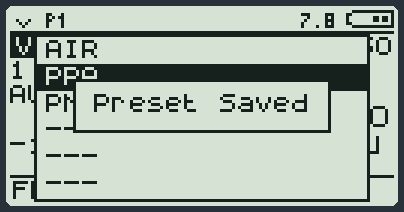
| What happens | Why |
|---|---|
| The preset takes the limits, the step, the mode and the other settings of the VFO | It is what you prepared. |
| The name stays the one it had | If the place was empty, the preset is called PR plus its number (for example PR 02). You change the name with the PC program. |
| The scan blacklist you have now goes onto it too | Every preset has its own blacklist. |
| The preset name appears above the frequency | The VFO is now on that preset, as if you had recalled it. |
Preparing the presets with the PC program
In RadioManager, in the radio settings, there is the Preset page: a table with 24 rows.
| Column | What you write there |
|---|---|
| Name | The name you will see on the radio. |
| Low Range, Up Range | The two band limits, in MHz. |
| Step | The step. |
| TX Power | The power. |
| BW | The bandwidth. |
| AGC | Who sets the gain. |
| Mode | The mode (FM, AM...). |
| Squelch | The squelch. |
| BL | The scan blacklist of that preset: when you recall the preset, the scan skips those frequencies. You can also fill it from the radio (F and then * in the SCList list). |
The EDIT button opens the sheet of a preset. You can save all your presets as a profile and load them again whenever you want, without writing them again.
The list of bands
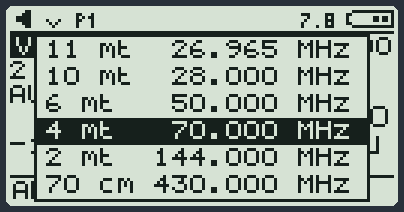
F and then 1 (in frequency mode) opens the list of the amateur radio bands. While you scroll, the radio already goes to that band so you can hear if someone is there. MENU confirms, EXIT puts everything back as it was. Each band also remembers reverse, scrambler, compander and RF gain. This too is in the Preset module.
The scan
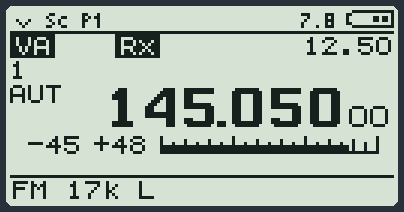
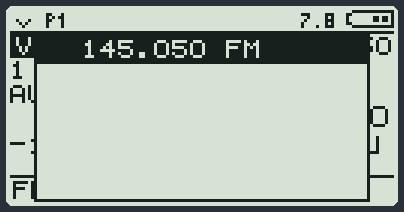
The scan makes the radio run from one frequency to the next and stops it when it finds someone talking. Sc appears at the top.
- Hold down *. In frequency mode it goes through the frequencies; on the memory channels it goes through the memory channels; on the FM radio it goes round the whole band, puts the stations in the SCList list and at the end opens it for you.
- When it finds a signal it stops to listen, then starts again.
- UP and DOWN change the direction.
- * short while it is running: "I am not interested in this one". The frequency goes into the blacklist and the scan skips it (Blacklist #1).
- Any other key stops the scan where it is. The PTT too: it stops and transmits.
| While the scan is running | What it does |
|---|---|
| 2 long | Changes VFO without stopping the scan. |
| Side key 1 long | Monitor. |
| 8 long | Stops and opens the scan times (Sc REV). |
| F and then 4, in frequency mode | Saves the frequency in a memory channel and stops. |
| F and then 4, on the memory channels | Marks the memory channel to be skipped (Skip Set). |
With DW or TW you can keep the FM radio on one VFO and scan on another. Put the FM radio (WFM) on a VFO, switch to another VFO with a long 2 and hold *: the scan runs and the FM radio keeps playing. When the scan finds a signal, the FM radio goes quiet and you hear the signal; when it ends, both start again. The FM radio also stays quiet during the scan wait time (Sc REV). If the VFO on the FM radio is the one you are using, a long * searches for FM stations as usual. This does not work for HF VFOs that use the Si4732.
Telling the scan where to search
Go to the lowest frequency and press F and then DOWN. Go to the highest and press F and then UP. Now the scan stays in between. If you recalled a preset, the limits are already those of the preset.
The SCList
It is a notepad where the interesting frequencies end up: the ones the scan found and the ones you add with * short. It holds 40. It is emptied when you switch the radio off.
| In the list | What it does |
|---|---|
| UP DOWN | Scrolls, and the radio goes to that frequency at once. |
| MENU | Keeps that frequency on the VFO and closes. |
| * | Removes the line, and also removes that frequency from the blacklist. Frequencies in the blacklist have a * in front. |
| F and then * | Saves the scan blacklist onto the preset you recalled last: the radio shows Preset Saved. If you have not recalled any preset it shows No Preset. It works even with an empty list. |
| 4 | Saves the whole list in the free memory channels. |
| F and then EXIT | Empties the list (SCList Clear). |
| EXIT | Closes. |
The list opens by itself when you stop a scan that found something. It also opens with F and then side key 1 long, or from the DSP menu, item SCList. F and then * long scans only the frequencies in the list.